
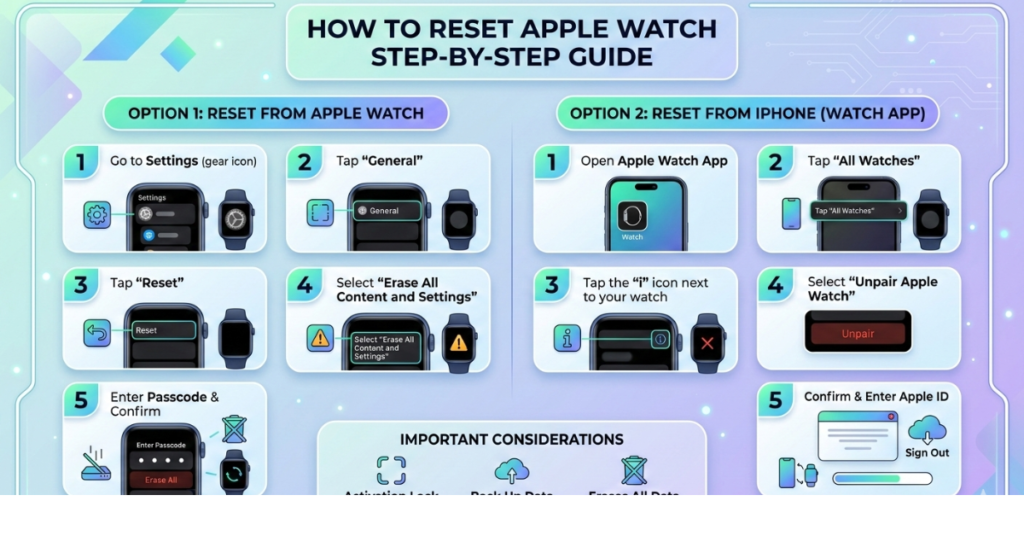

Apple Watches are incredibly reliable, but sometimes things go wrong. Maybe your watch is frozen, you forgot the passcode, or you’re planning to sell it. In these situations, knowing how to reset Apple Watch can save you a lot of frustration.
The good news? Resetting an Apple Watch is surprisingly simple once you know the right steps. Whether you need to reset the passcode, perform a factory reset, or reset your Apple Watch without the paired phone, this guide will walk you through every method.
By the end of this article, you’ll know exactly how to reset Apple Watch to factory settings, reset the passcode, and pair it again with your iPhone.
Why You Might Need to Reset Your Apple Watch
Before diving into the steps, it helps to understand why people reset their Apple Watch in the first place.
Common reasons include:
-
Forgotten Apple Watch passcode
-
Apple Watch is frozen or not responding
-
You’re selling or giving away the device
-
Problems with pairing or syncing
-
Software glitches or performance issues
Resetting your watch returns it to factory settings, removing apps, data, and settings.
How to Reset Apple Watch Using iPhone
This is the easiest and safest method if you still have access to your paired iPhone.
Steps to reset Apple Watch and pair again
-
Keep your Apple Watch and iPhone close together.
-
Open the Watch app on your iPhone.
-
Tap My Watch.
-
Select General.
-
Scroll down and tap Reset.
-
Choose Erase Apple Watch Content and Settings.
-
Enter your Apple ID password if prompted.
Your Apple Watch will now reset and restart, returning to factory settings.
This method automatically removes Activation Lock, making it easier to pair the watch again.
How to Reset Apple Watch to Factory Settings Directly from the Watch
If your iPhone isn’t nearby but you still remember the passcode, you can reset the device directly.
Steps
-
Open Settings on your Apple Watch.
-
Tap General.
-
Scroll down and select Reset.
-
Tap Erase All Content and Settings.
-
Enter your passcode.
-
Confirm the reset.
After a few minutes, your watch will restart as a brand-new device.
How to Reset Apple Watch Without Passcode
Forgetting your passcode happens more often than you’d think. Thankfully, Apple provides a built-in way to reset the watch.
Steps to reset Apple Watch without passcode
-
Place your Apple Watch on its charger.
-
Press and hold the Side Button until the power screen appears.
-
Press and hold the Digital Crown.
-
Tap Erase all content and settings.
-
Confirm the reset.
This process erases the watch completely and removes the forgotten passcode.
How to Reset Apple Watch Without Paired Phone
Sometimes your iPhone isn’t available anymore—maybe it was lost, upgraded, or reset. You can still reset the watch.
Method
-
Put the Apple Watch on its charger.
-
Hold the Side Button until the power options appear.
-
Press and hold the Digital Crown.
-
Tap Erase All Content and Settings.
However, if Activation Lock is enabled, you’ll still need your Apple ID and password to pair the watch again.
How to Reset Apple Watch Without Paired Phone and Password
This is the most difficult scenario.
If the watch is still linked to an Apple ID, Activation Lock will prevent setup.
Your options include:
-
Enter the original Apple ID credentials
-
Ask the previous owner to remove the device from iCloud
-
Contact Apple Support with proof of purchase
Without these steps, the device cannot be activated again.
How to Reset Apple Watch Password Passcode
If you simply want to change or reset your Apple Watch passcode, follow these steps.
On Apple Watch
-
Open Settings.
-
Tap Passcode.
-
Select Change Passcode.
-
Enter the current passcode.
-
Create a new one.
On iPhone
-
Open the Watch app.
-
Tap Passcode.
-
Choose Change Passcode.
This method works for all models, including Apple Watch Series 3 and later.
How to Reset Watch Series 3
The process for Watch Series 3 is nearly identical to newer models.
Steps
-
Go to Settings.
-
Tap General → Reset.
-
Select Erase All Content and Settings.
-
Enter your passcode.
The watch will erase all data and restart.
How to Pair Watch Again After Reset
Once the reset is complete, pairing it again takes only a minute.
Steps
-
Turn on the Watch.
-
Bring your iPhone close to the watch.
-
Tap Continue when the pairing animation appears.
-
Scan the animation with your iPhone camera.
-
Follow the on-screen instructions.
You can restore data from a backup if one exists.
Tips Before Resetting Your Watch
Before performing a factory reset, keep these tips in mind:
-
Backup your data through your paired iPhone
-
Make sure you know your Apple ID password
-
Keep the watch charged during reset
-
Unpairing automatically creates a backup
Taking these steps prevents data loss and setup issues later.
FAQs
How do I force reset an Watch?
Press and hold the Side Button and Digital Crown together for about 10 seconds until the Apple logo appears.
Can I reset Watch without iPhone?
Yes. You can reset it directly from Settings on the watch or by using the Digital Crown reset method.
How do I reset Watch if I forgot the passcode?
Place the watch on the charger, hold the Side Button, then press and hold the Digital Crown and select Erase All Content and Settings.
Will resetting Watch remove Activation Lock?
No. Activation Lock remains unless you unpair the watch from the iPhone or remove it from iCloud.
How long does it take to reset Watch?
Typically 2–5 minutes, depending on the model and stored data.
Conclusion
Knowing how to reset Apple Watch is essential when troubleshooting problems, preparing the device for resale, or recovering from a forgotten passcode.
The key options include:
-
Resetting through the iPhone Watch app
-
Performing a factory reset directly from the watch
-
Resetting without passcode
-
Resetting without a paired phone
Once the reset is complete, pairing your watch again takes only a few minutes, and you’ll be back to tracking workouts, receiving notifications, and using your favorite apps.
If you’re dealing with persistent issues, consider checking Apple’s official support resources or visiting an Apple Store.


